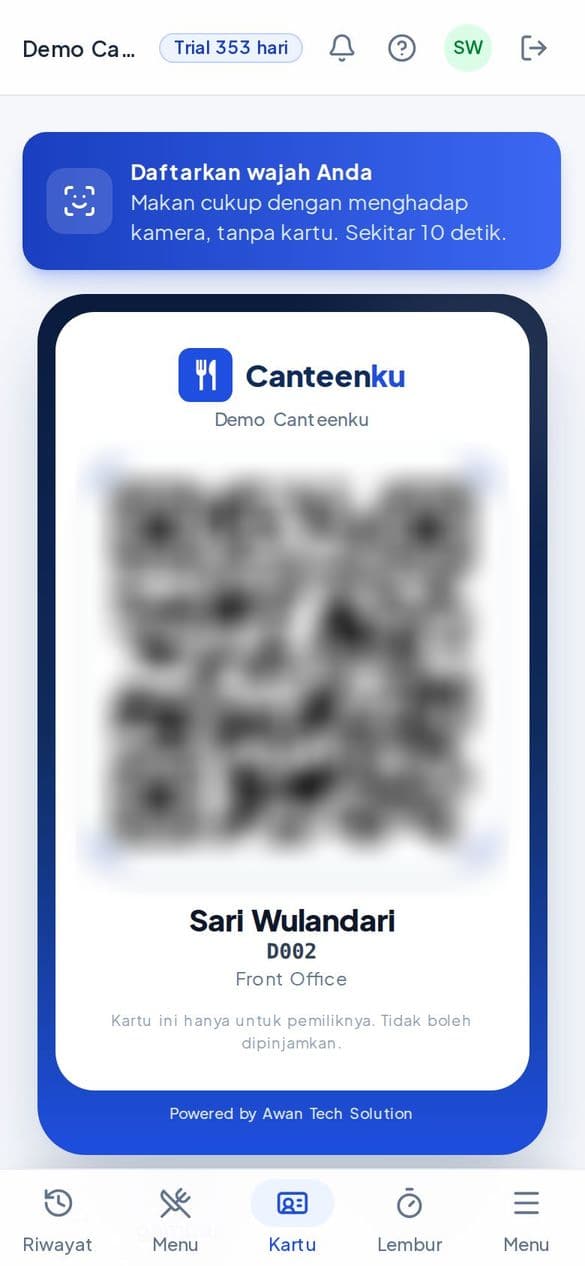
Vendor guide contents
For caterers and kitchens that supply food. You only see your own vendor's data in the organisation where you work.
The screenshots show the app in Indonesian. In the app, open Profile & Account and choose EN to switch the language.
What you can do
- See the portion forecast for tomorrow and a billing summary
- Fill in the menu with photos
- Record production and leftover food
- Fill in the daily food safety check (HACCP)
- Create and track bills, and see the vendor scorecard
Outside this role
- Change employees' meal claims
- See other vendors or employee data
- Approve your own bills (Finance decides)
- Change meal times, prices, or organisation settings
- 1Get started: sign in and install
Sign in, install on your phone, turn on notifications, and set up your account. - 2The vendor dashboard
Tomorrow's portion forecast and a billing summary. - 3Filling in the menu
Employees see the menu in their app straight away. - 4Production, leftovers, and food safety
Daily records that make forecasts and quality better. - 5Bills
Automatic bills from the system and manual bills that are reconciled. - 6Scorecard, ratings, events, and the till
Monthly score, employee feedback, events, and selling with the wallet. - 7Frequently asked questions
Short answers to the most common problems.
Get started: sign in and install
Sign in, install on your phone, turn on notifications, and set up your account.
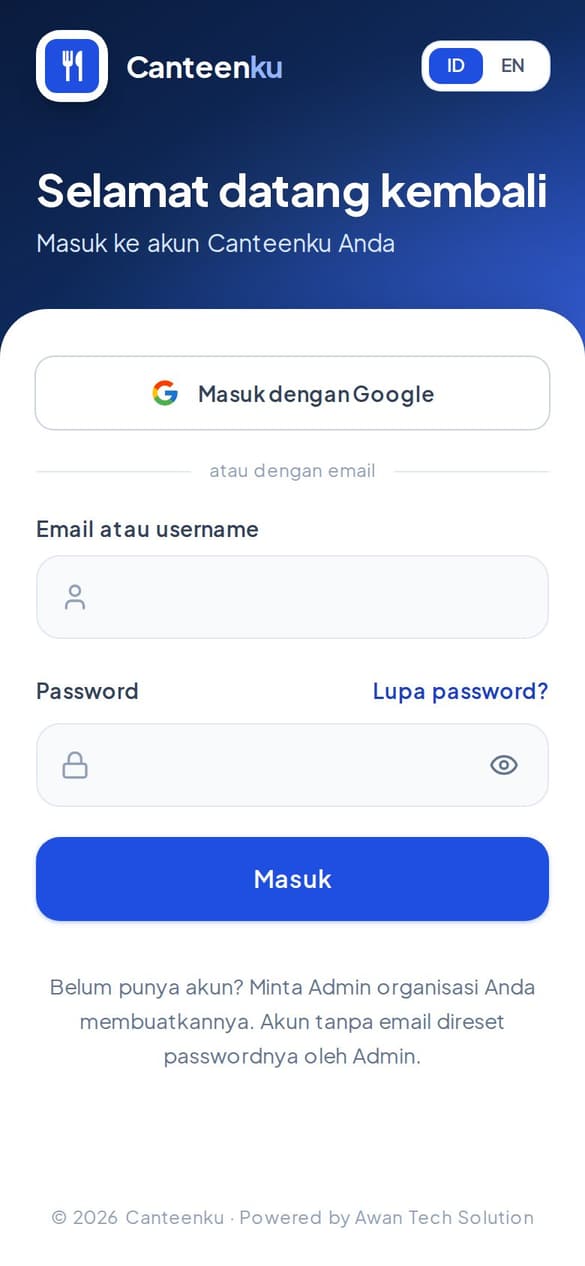
1Sign in to Canteenku
Your account is created by the admin or HR of your organisation. You do not need to register yourself.
- Open canteenku.cloud in Safari or Chrome, or open the Canteenku app if it is already installed.
- Enter the Email or username and Password your admin gave you, then tap Sign in.
- If your account uses a Google email, tap Sign in with Google.
- After signing in, you land on the home page for your role.
Forgot your password? Tap Forgot password? on the sign-in page, enter your email, and follow the button in the email. Accounts without an email: ask your admin to reset the password.
After your first sign-in, change your password in Profile & Account so only you know it.
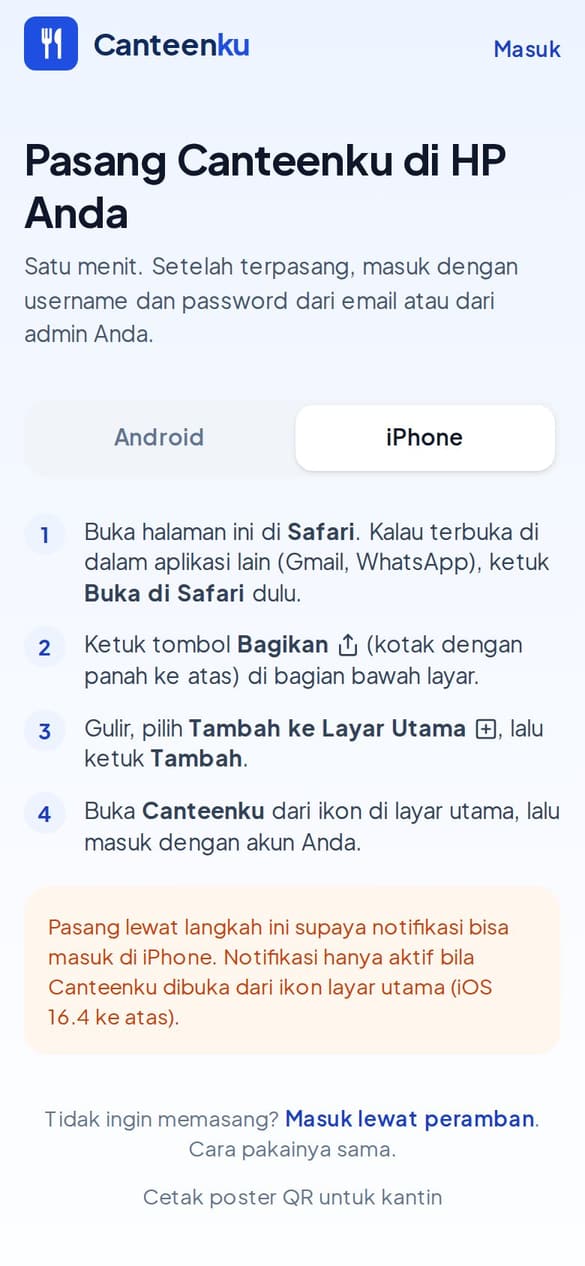
2Install it on your phone
Canteenku works in a browser, but it is more convenient installed like an app. Choose your phone.
- Android: open canteenku.cloud/unduh, tap the download button, open the Canteenku.apk file from the notification or the Files app, allow install from this source if asked, then tap Install.
- iPhone: open canteenku.cloud in Safari, tap the Share button (a box with an arrow pointing up) at the bottom of the screen, choose Add to Home Screen, then tap Add.
- Open Canteenku from the icon on your home screen and sign in with your account.
On iPhone, notifications only work when Canteenku is opened from the icon on the home screen (iOS 16.4 or later), not from regular Safari.
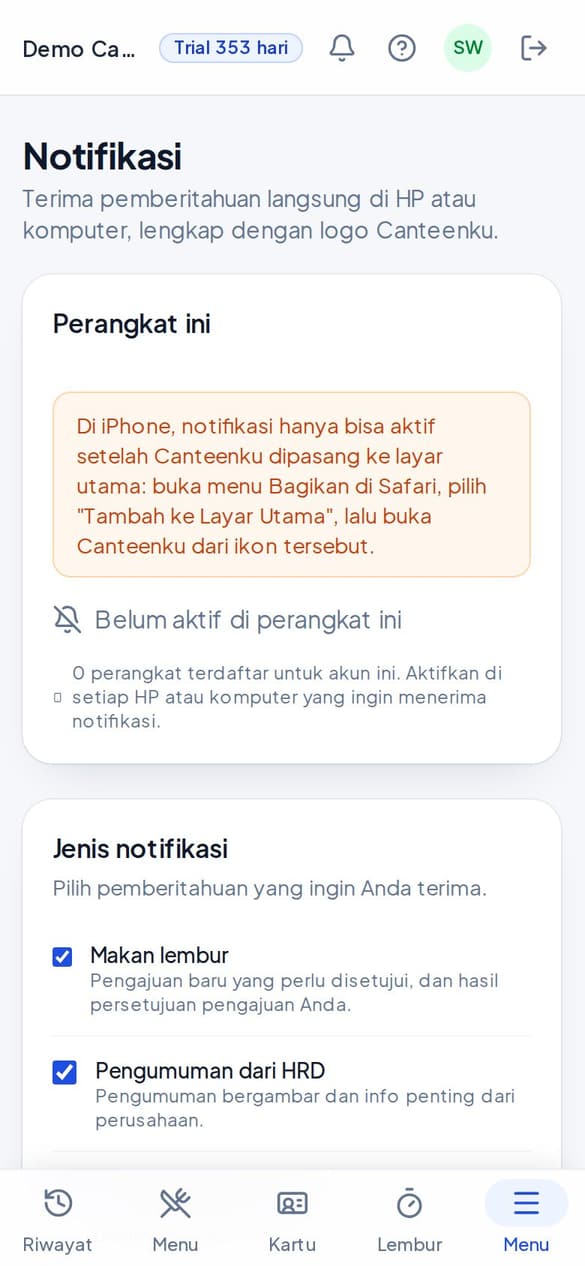
3Turn on notifications
Notifications tell you what matters right on your phone or computer, with the Canteenku logo.
- Open Notifications (from the main menu or the bell icon).
- Under This device, tap Turn on notifications, then choose Allow when your phone asks.
- Under Notification type, tick the notifications you want to receive.
Turn this on for every phone or computer you use. The setting applies per device.
4Profile, password, and language
It is all in the Profile & Account menu.
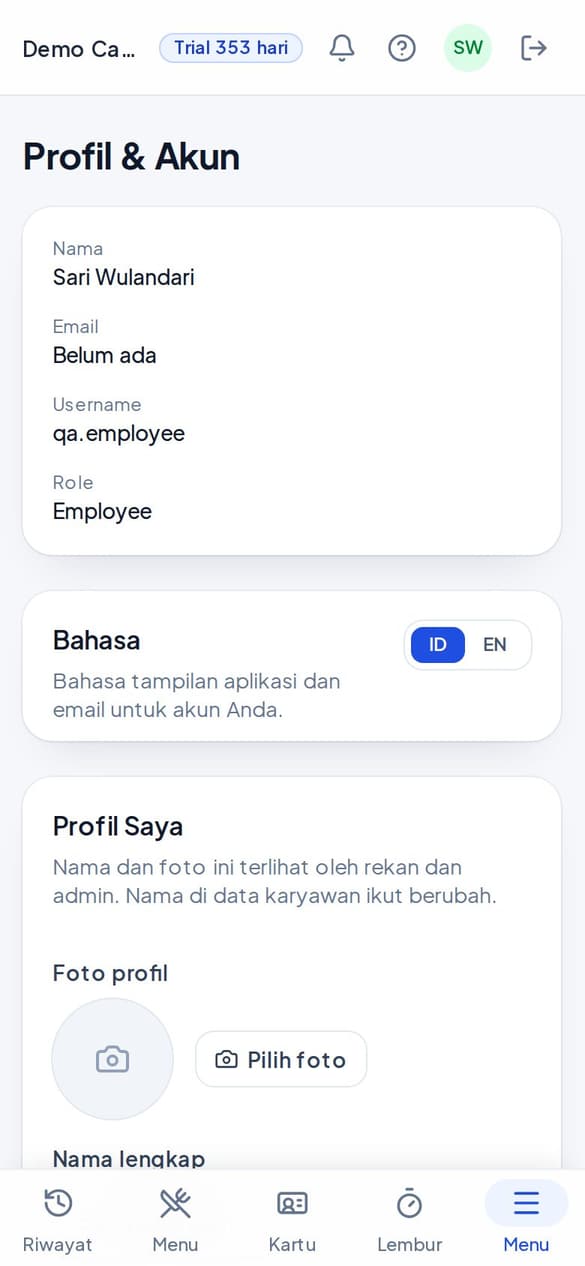
- Open Profile & Account from the main menu.
- Language: choose ID (Indonesian) or EN (English) for the app and email.
- Profile photo: tap Choose photo. Colleagues and admins can see your photo.
- Change password: tap Change password, enter a new password, then save.
- Two-step verification (2FA): turn it on for extra protection. Some organisations require it for certain roles.
Never share your password or QR card. Every claim is recorded in the account owner's name.
The vendor dashboard
Tomorrow's portion forecast and a billing summary.
1Reading the dashboard
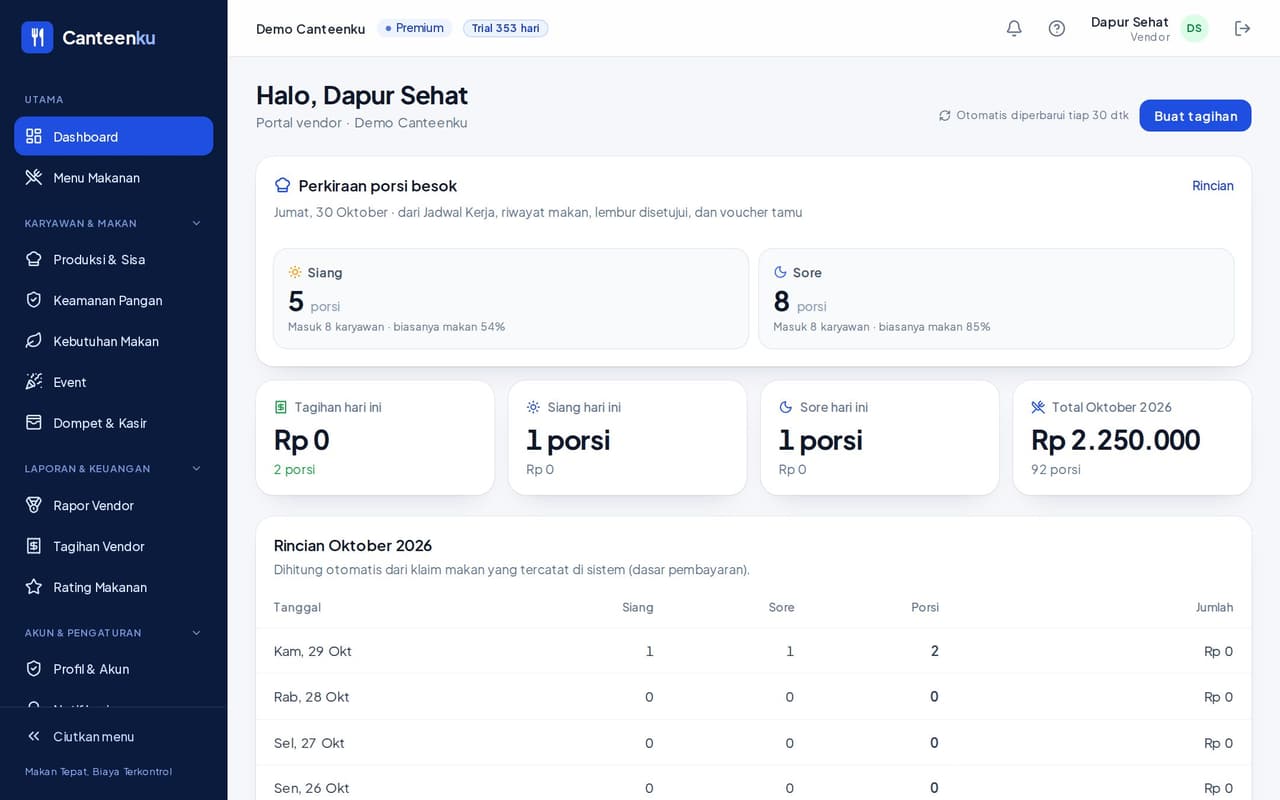
The first page greets your vendor name, with a Create bill button at the top right.
- Tomorrow's portion forecast: how many portions to prepare for Lunch and Dinner. It is based on the duty roster, meal history, approved overtime, and guest vouchers. Tap Details for the breakdown.
- The Today's bill, Lunch today, Dinner today, and Total this month cards show the portions and value the system has recorded.
- This month's breakdown shows a table per date: Lunch portions, Dinner portions, and the total.
The forecast for tomorrow is sent to the vendor automatically every day at 15:00, so the kitchen can prepare ingredients.
Filling in the menu
Employees see the menu in their app straight away.
1Adding a dish
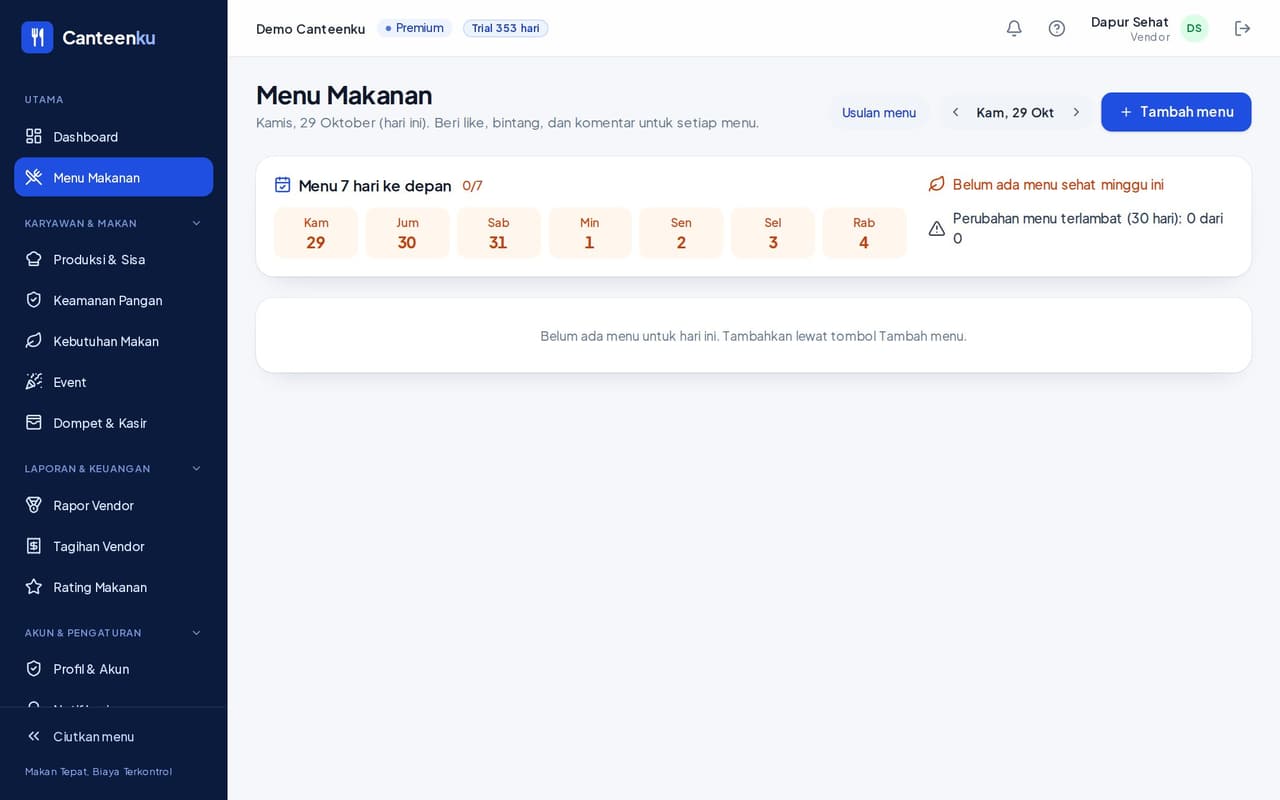
- Open Menu, then click Add menu.
- Fill in the Date, Meal time, and Canteen, then write the Dish name.
- Add a Note (optional) and a Photo. Tick Healthy dish if it qualifies.
- Save. Employees see the dish in their app straight away.
Pre-order option: mark two or more dishes at the same meal time. Employees choose one by the day before at the latest, and the kitchen sees the count per choice.
The Menu for the next 7 days section shows which days are filled and which are not. See late changes lists menu changes made close to the day itself.
Production, leftovers, and food safety
Daily records that make forecasts and quality better.
1Recording production and leftovers
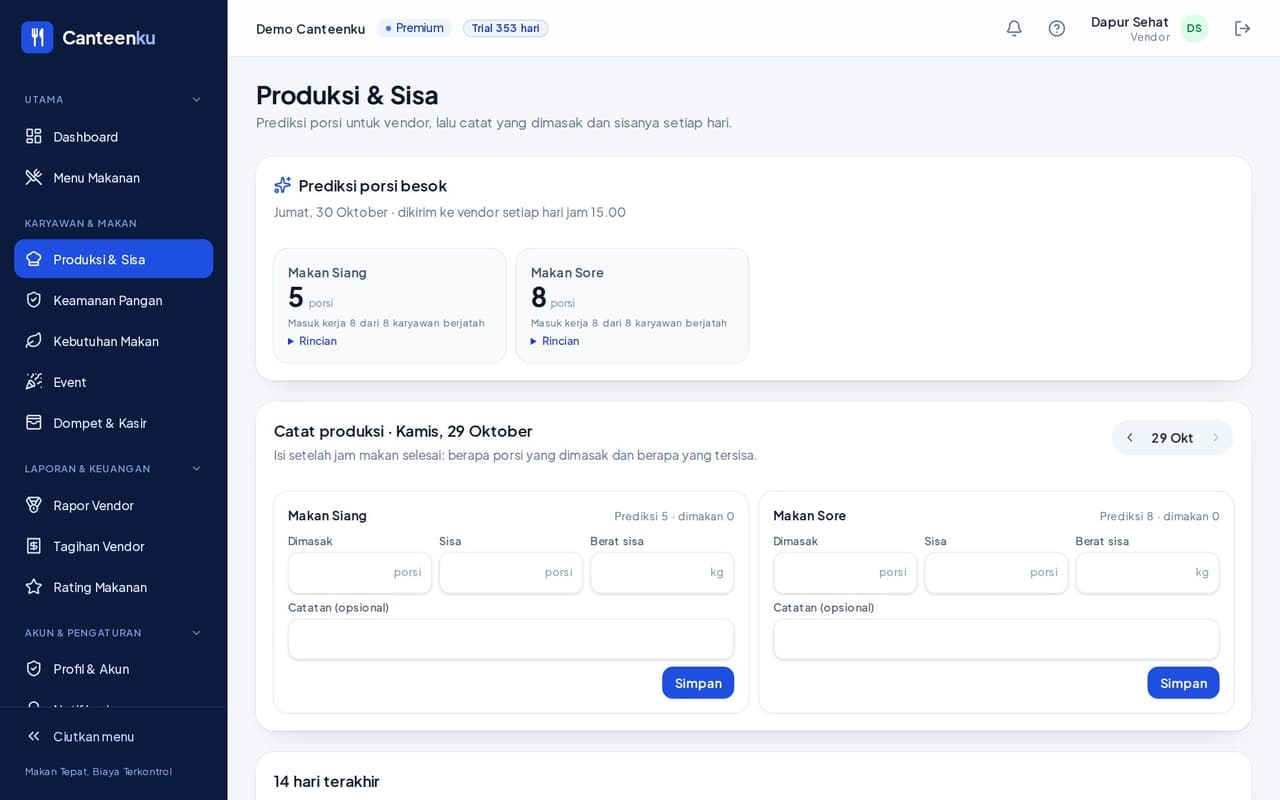
Open Production & Waste. At the top is the Tomorrow's portion forecast per meal time.
- In the Record production card, choose the date (arrows at the top right).
- For each meal time, fill in Cooked (portions), Leftover (portions), and Leftover weight (kg). The note is optional.
- Click Save. The Last 14 days history appears below.
Fill it in after the meal time ends: how many portions were cooked and how many are left. This data is used to reduce food waste and feeds into the vendor scorecard.
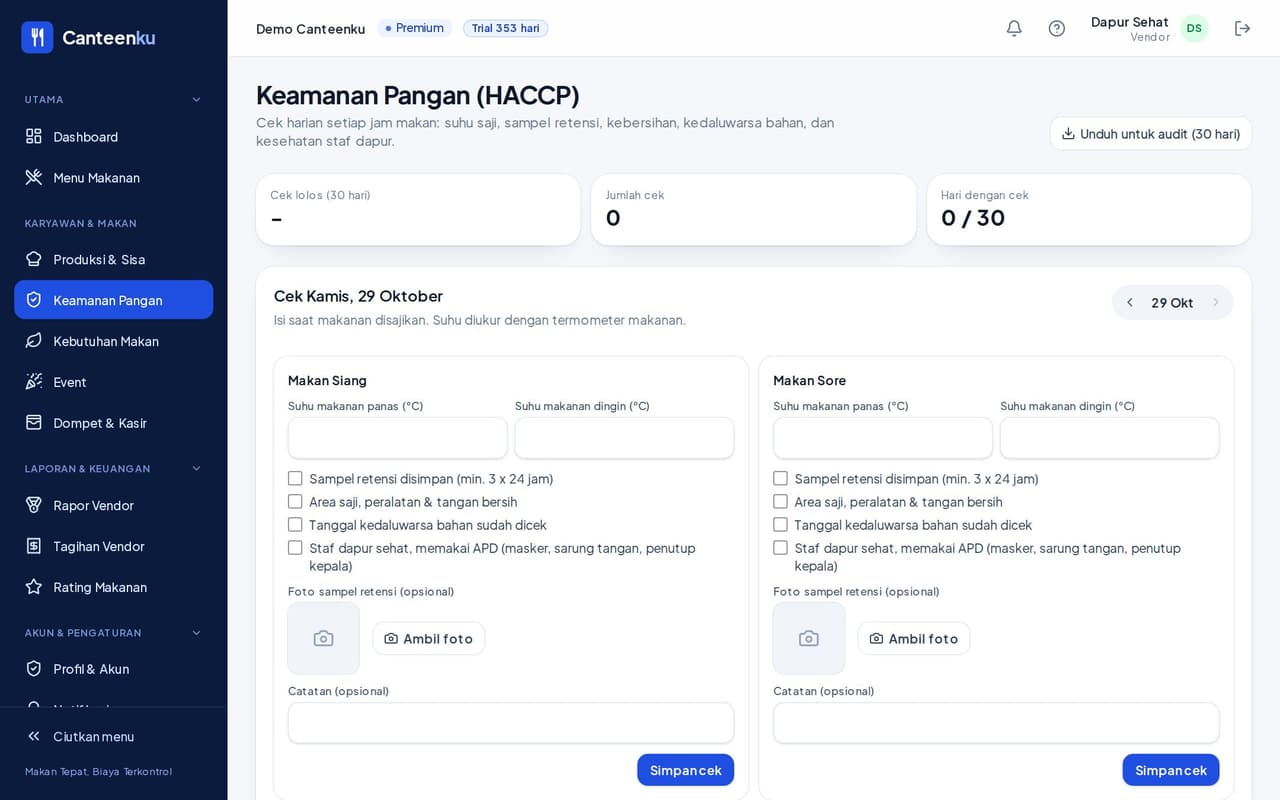
2The food safety check (HACCP)
A daily check for each meal time: serving temperature, retention sample, cleanliness, ingredients, and staff health.
- Open Food Safety. Choose the date at the top right of the check card.
- Fill in the Hot food temperature and Cold food temperature (°C), measured with a thermometer.
- Tick each item: Retention sample kept (at least 3 x 24 hours), Serving area, utensils & hands clean, Ingredient expiry dates checked, Kitchen staff healthy and wearing PPE.
- Add a Retention sample photo and a note if needed, then click Save check.
The Download for audit (30 days) button produces a report of the checks for inspection. The card above shows the 30-day check compliance.
Bills
Automatic bills from the system and manual bills that are reconciled.
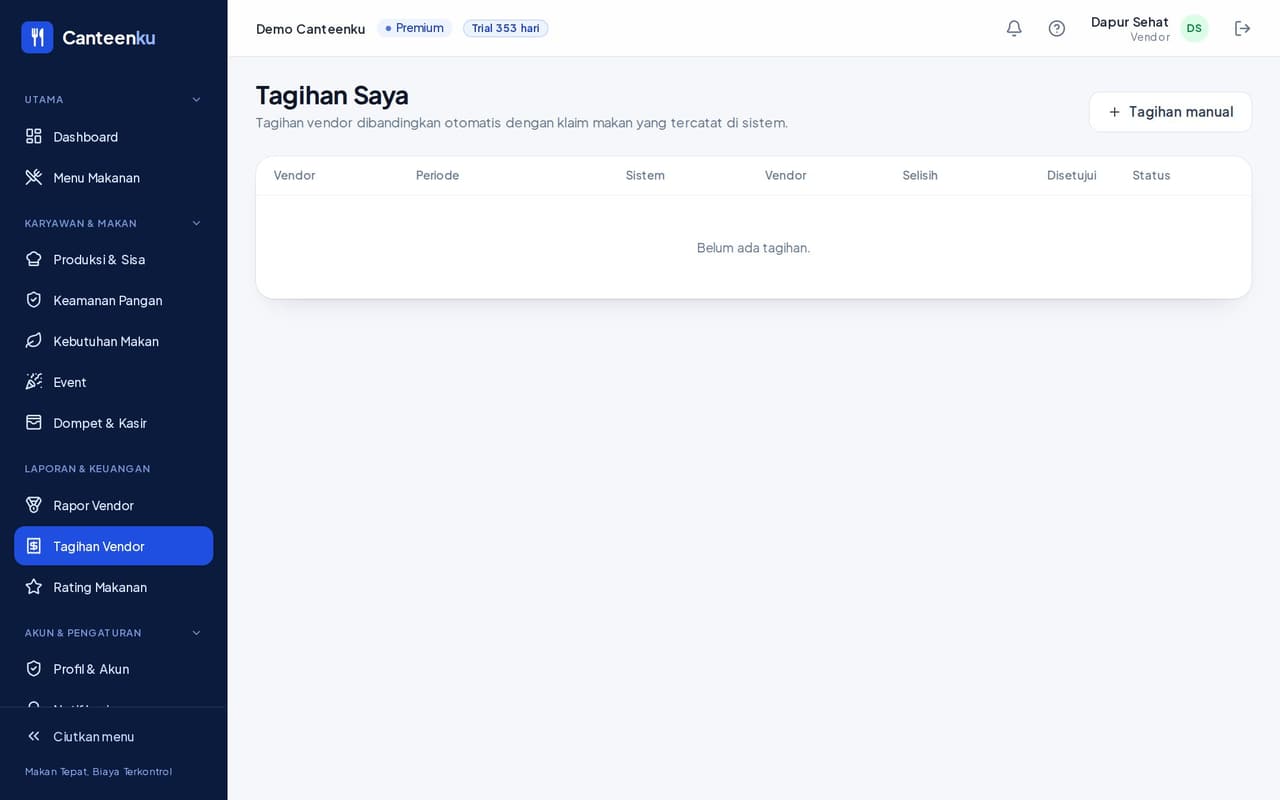
1Viewing bills
Open Vendor Bills (My Bills). Your bills are compared automatically with the meal claims recorded in the system. The table shows the period, the value per the system, the value per the vendor, the difference, the approved value, and the status.
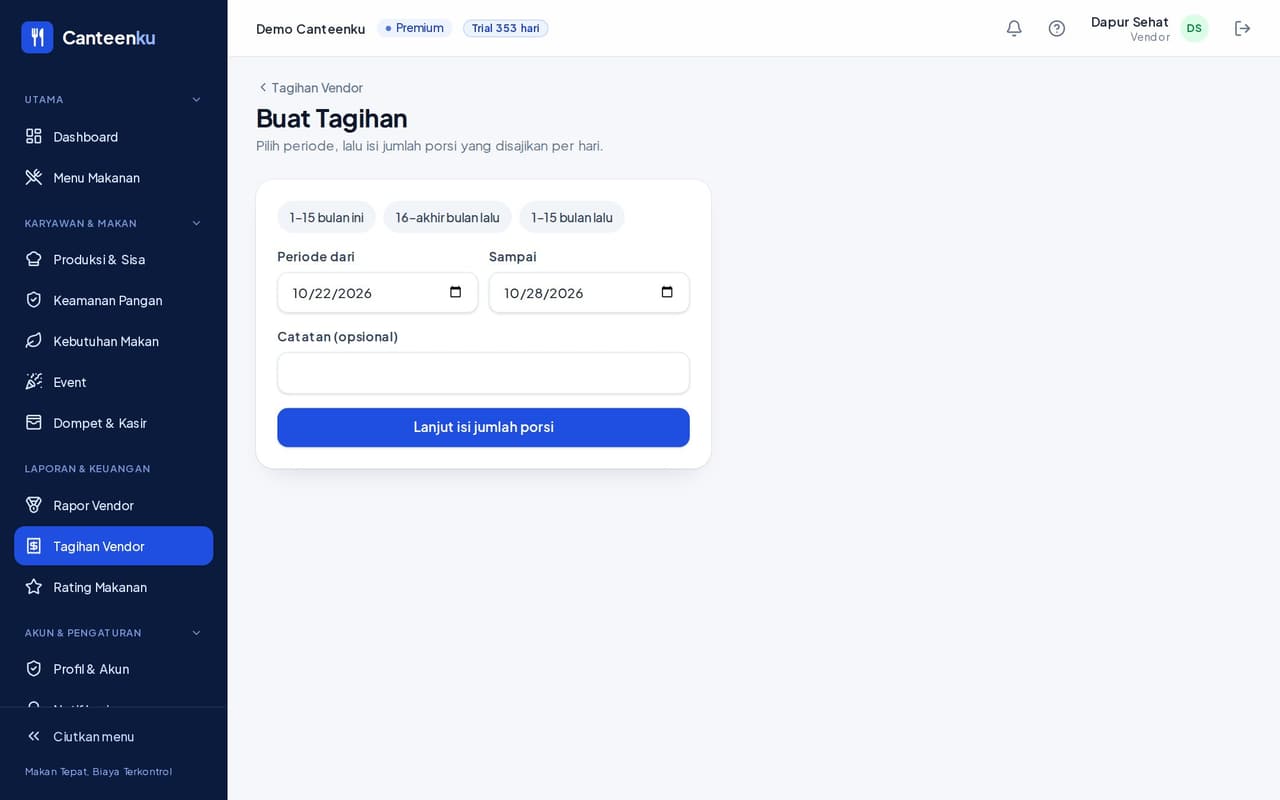
2Creating a manual bill
- Click Manual bill (or Create bill on the dashboard).
- Choose the Period: use a quick option such as 1-15 last month, 16-end of last month, or 1-15 this month, or set Period from and To yourself. The note is optional.
- Click Continue to portion counts, then enter the number of portions you served each day.
- Submit. Finance compares your figures with the recorded claims, then reviews and decides.
If your figures differ from the system, the difference is clearly visible and is discussed with Finance. So record portions carefully.
Once submitted, the portion counts cannot be changed unless Finance returns the bill to you for revision.
Automatic bills from the system are created on the 1st for the previous period, and on the 16th for vendors billed twice a month. The portion count comes from the scans at the canteen (employees and guests) multiplied by the agreed price per portion.
Scorecard, ratings, events, and the till
Monthly score, employee feedback, events, and selling with the wallet.
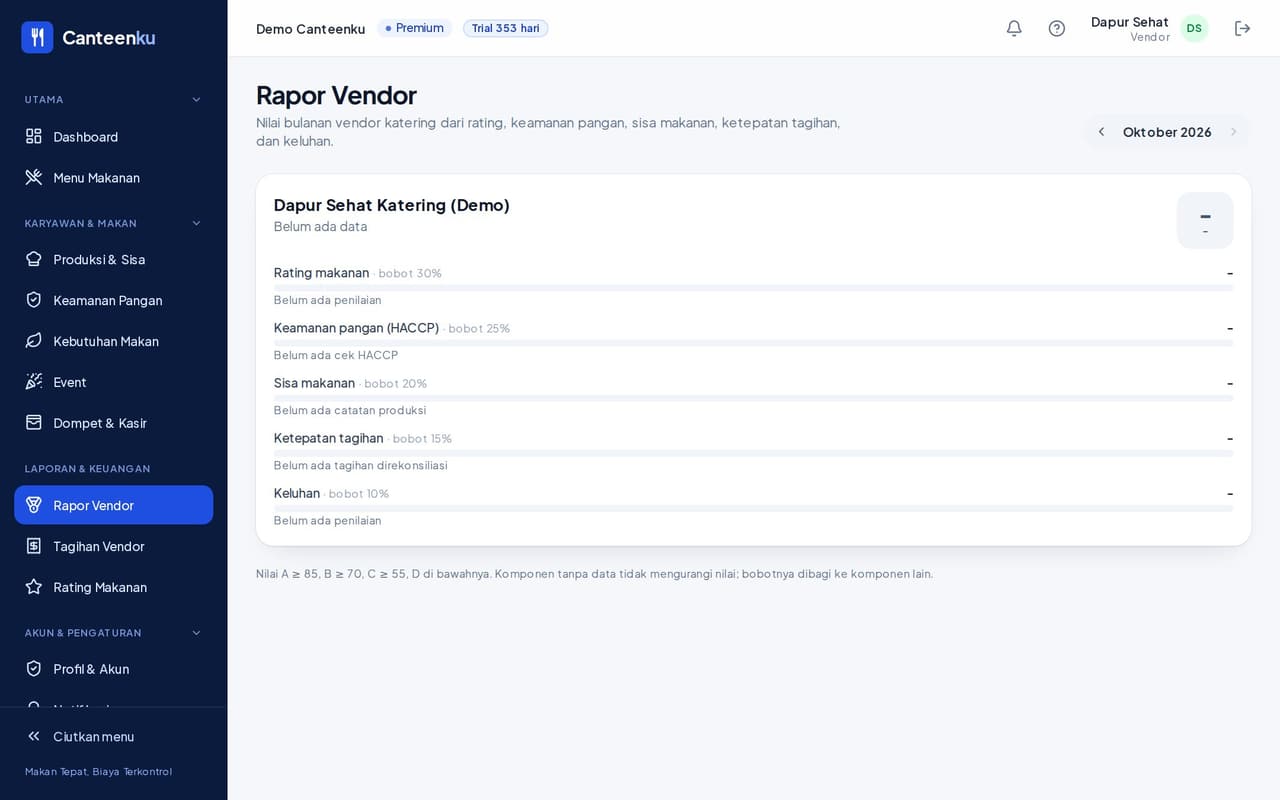
1The vendor scorecard and food ratings
- Vendor Scorecard gives a monthly score: food ratings, food safety (HACCP), food waste, billing accuracy, and complaints. A component with no data does not lower the score.
- Food Ratings shows stars, likes, and employee comments per dish. Comments are anonymous.
- Dietary Needs shows how many employees are vegetarian or allergic per type, without names.
2Events and Wallet & Till
- Events: occasions with many food stands. Employees scan their card at each stand, and the vendor bill is calculated automatically.
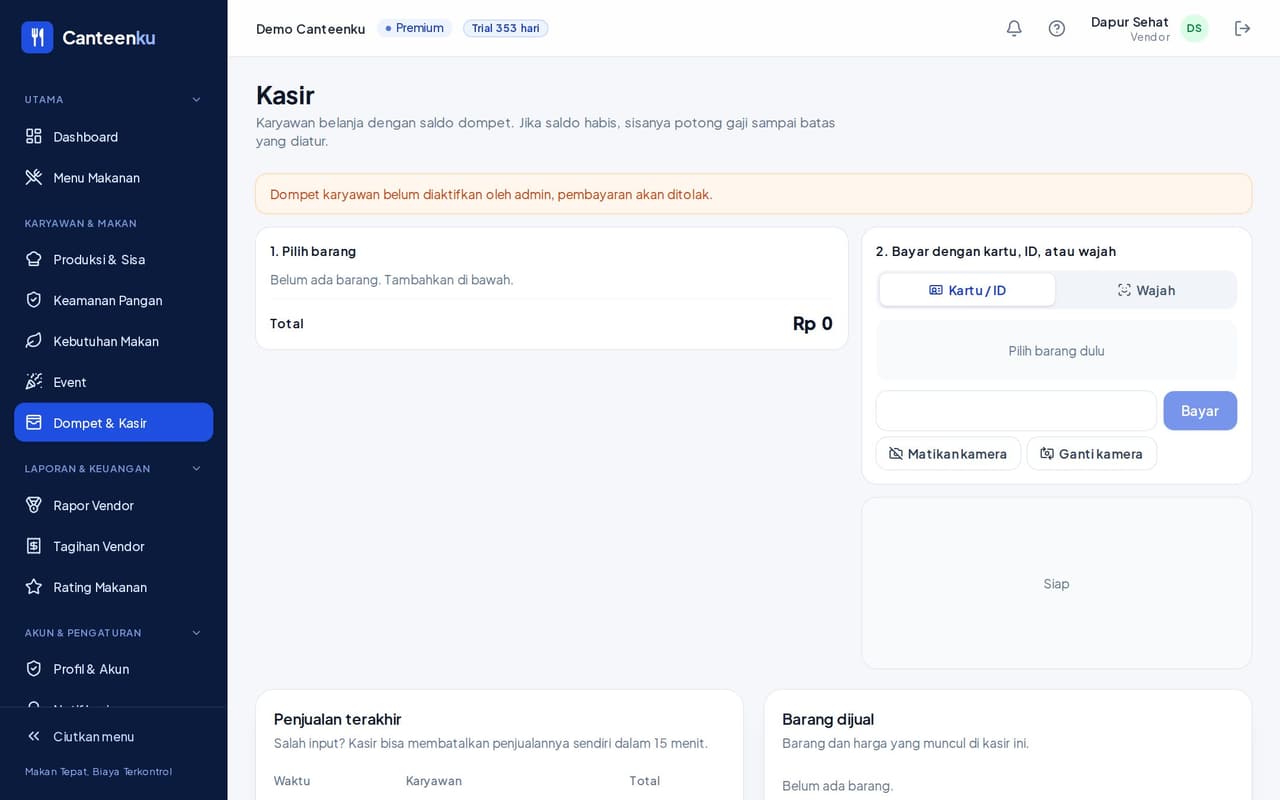
- Wallet & Till: if the company turns on the employee wallet, choose the items, then ask the buyer to pay with a card or ID or their face. You can cancel the last sale yourself within 15 minutes.
If the admin has not turned on the wallet, the till shows a warning and payments are refused.
Frequently asked questions
Short answers to the most common problems.
- Today's menu does not show in the employee app.
- Make sure the Date, Meal time, and Canteen on the dish are correct, then save. The dish appears as soon as it is saved. If it still does not, reload the page.
- My portion count differs from the system bill.
- The system counts from the claims recorded at the canteen. The difference is visible in the bills table. Send Finance an explanation if portions were really served outside the claims.
- When is tomorrow's forecast sent?
- Every day at 15:00. You can also see it at any time on the dashboard or in Production & Waste.
- I cannot cancel a sale at the till.
- A sale can only be cancelled within 15 minutes. After that, contact the admin or Finance.
- I forgot my password.
- Tap Forgot password? on the sign-in page, or ask the admin to reset it.
Still have questions?
Contact us on WhatsApp +62 857-0779-9569 or by email at awantechsolution.bali@gmail.com. Tell us your role and the name of the menu you opened.